
How to Add Swatches Based on Variant Image Automatically in Shopify
You can automatically create Shopify image swatches by assigning images to each variant and enabling native image swatches in supported themes. You can also use a Shopify app with AI automation or customize your theme with Liquid code.
Even today, many Shopify store owners manually set up variant swatches. This slow process wastes valuable time you could spend scaling sales.
You can now skip manual work and add swatches based upon the variant image automatically in Shopify.
This guide reveals a simple step-by-step process to set up automated swatches. You will also learn quick fixes for common swatch errors.
How to Add Swatches Based Upon the Variant Image Automatically in Shopify
You can use an app to perform this job. Now, you may be thinking why you need to use third-party software to accomplish this task.
Shopify can display variant options as buttons, pills, or image swatches in some Online Store 2.0 themes, but it doesn’t automatically create and manage image swatches from variant images for every store.
The exact behavior depends on your theme, and many merchants use a dedicated app for full automation.
Hence, if you encounter any tutorial online claiming to add swatches automatically on Shopify natively, I need to tell you that they are just talking about how to change swatch style from dropdowns to buttons in Dawn, Horizon, and other free themes.
Well, how do we automatically add swatches then? As I said, we can use a third-party app or change theme file code (quite risky if you aren’t a developer).
I don’t want to follow the risky and hard way; instead, I want to show you the easiest path to complete this job. Let’s get started.
Step 1 – Pick the Best Color Swatch & Variant Image App
First, we need to select a great Shopify variant image swatch app. Here’s what to consider before choosing one.
- Native Theme Support: Check your theme customizer first, as modern Shopify themes often feature built-in swatches.
- Collection Page Display: Pick an app that shows swatches on collection and search pages for faster browsing.
- Image and Pattern Swatches: Ensure the tool handles fabric textures, patterns, and custom images beyond basic colors.
- Inventory Logic: Verify how the app displays sold-out options, like hiding or crossing out unavailable items.
- Speed and Performance: Test the tool on a preview theme to prevent slow mobile load times and layout shifts.
Echo Swatch meets all the criteria above. So, I will use it on this tutorial.
Step 2 – Install and Open Echo Swatch
Head to the Shopify apps store. Search for “Echo Swatch,” click ‘Install’ button of the app, wait for a while, and lastly click ‘Open’ once the app gets installed.
Step 3 – Launch Echo Swatch from Your Shopify Admin
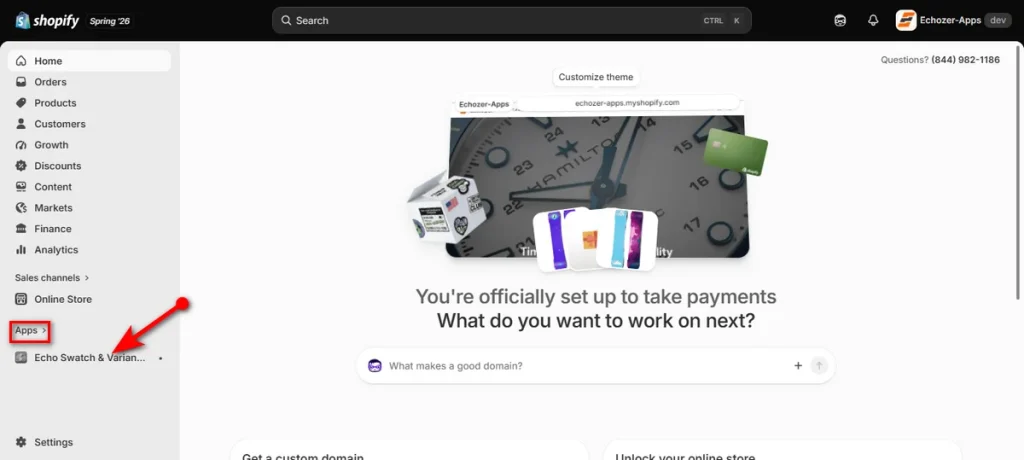
Open your Shopify Admin panel. Under the left sidebar, click ‘Apps’ and select “Echo Swatch & Variant Images” to open the app dashboard.
Step 4 – Choose a Product to Configure
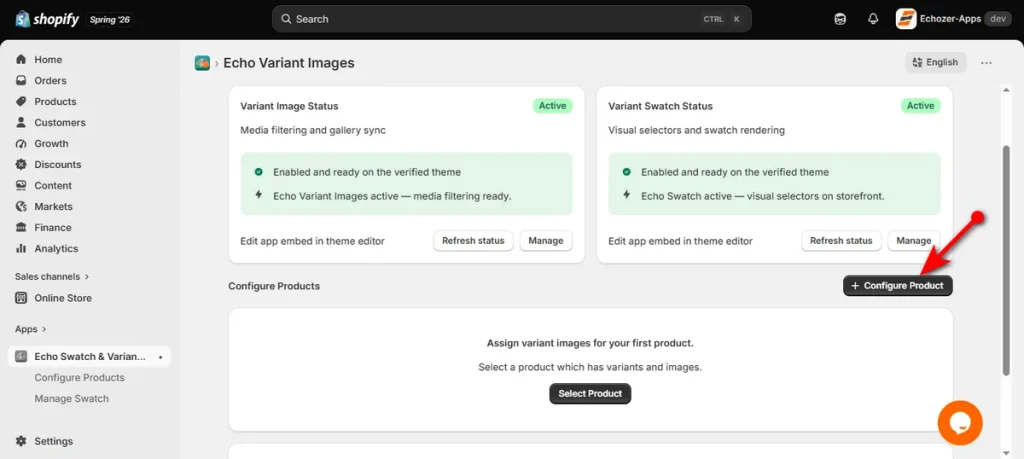
On the Echo Swatch main dashboard, locate the “Configure Products” section and click the “+ Configure Product” button.
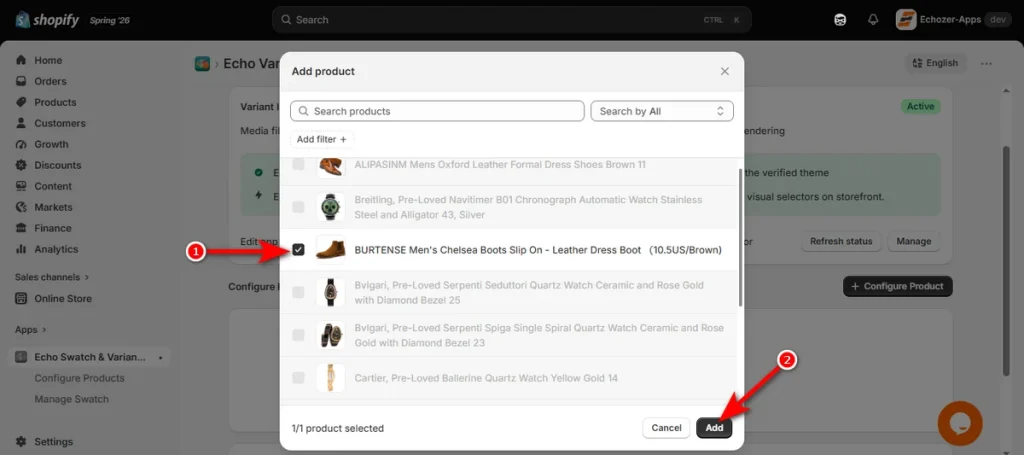
In the popup window that appears, check the box next to your desired product and click ‘Add’ button.
Step 5 – Auto-Assign Images to Your Product Variants
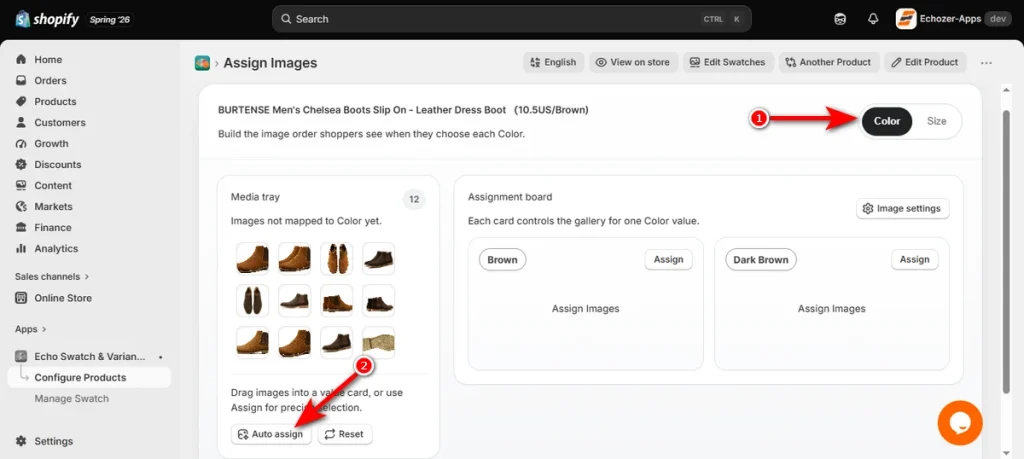
Inside the assignment interface:
- Select the variant option you want to configure (for example, Color).
- Look at the bottom of the “Media tray” panel on the left and click the “Auto assign” button.
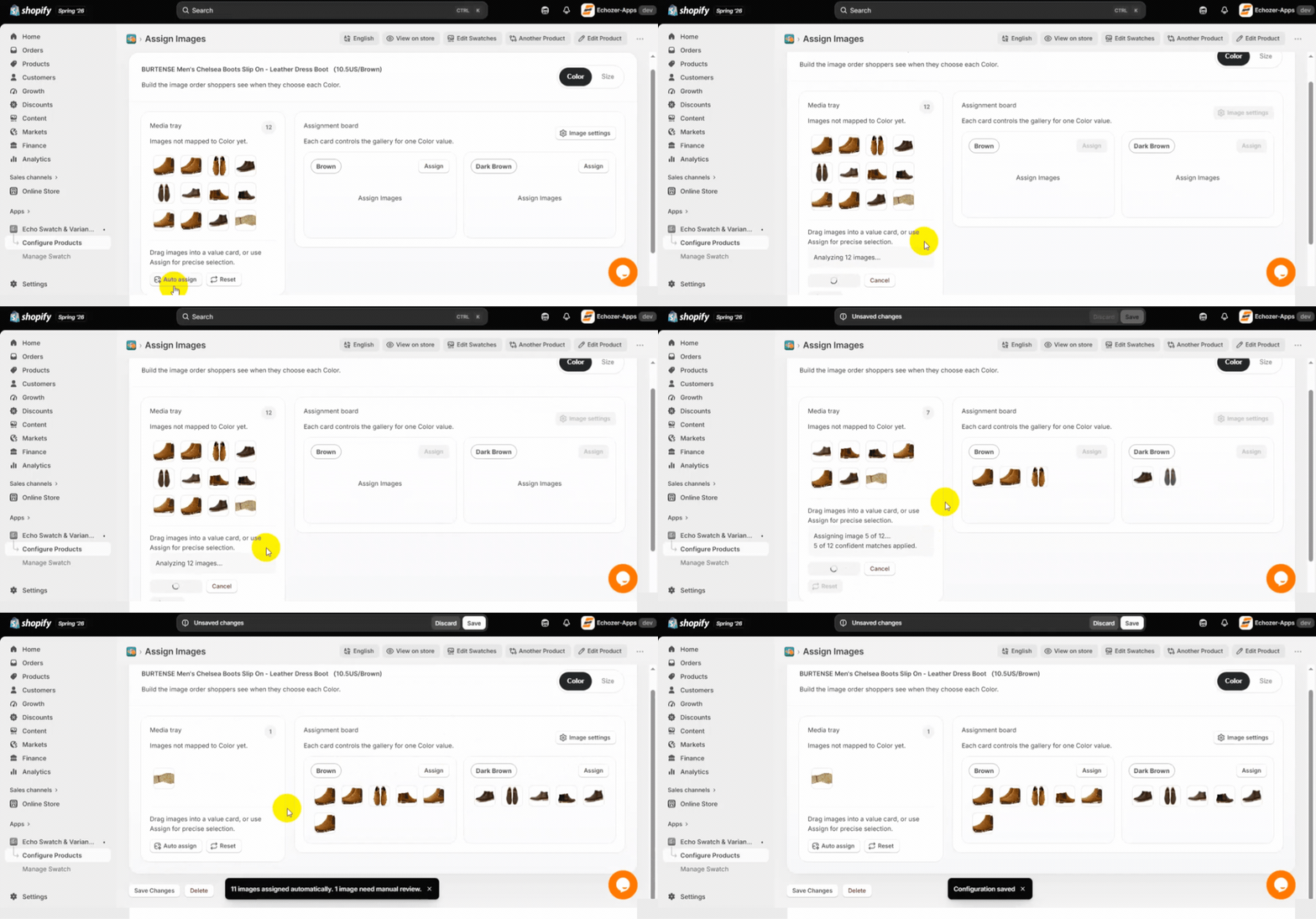
- The app will scan your uploaded media and match each image to the corresponding variant option value automatically.
Step 6 – Review and Save Your Swatch Configuration
Once the automatic mapping completes, double-check the assigned images under each option value on the “Assignment board.”
Click ‘Save’ in the top right header (or “Save Changes” at the bottom) to apply the swatches to your live product page.
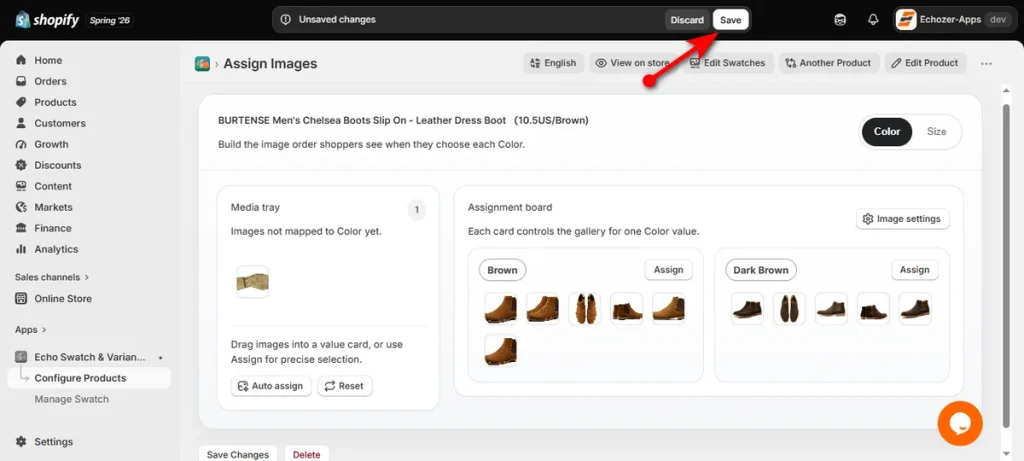
That’s how you automatically add swatches based on the variant image in Shopify.
Native Shopify vs Echo Swatch
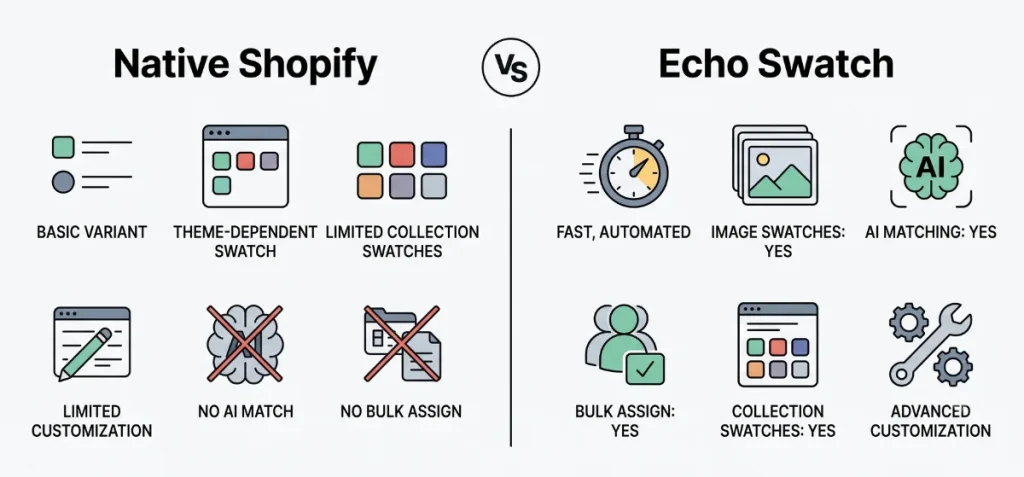
Native Shopify provides basic variant selection options, but Echo Swatch delivers a faster, fully automated visual experience.
| Feature | Shopify Native | Echo Swatch |
| Automatically create image swatches | Theme-dependent | Yes |
| AI image matching | No | Yes |
| Bulk image assignment | No | Yes |
| Collection page swatches | Limited | Yes |
| No coding | Yes | Yes |
| Customization | Limited | Advanced |
Common Problems When Adding Variant Image Swatches
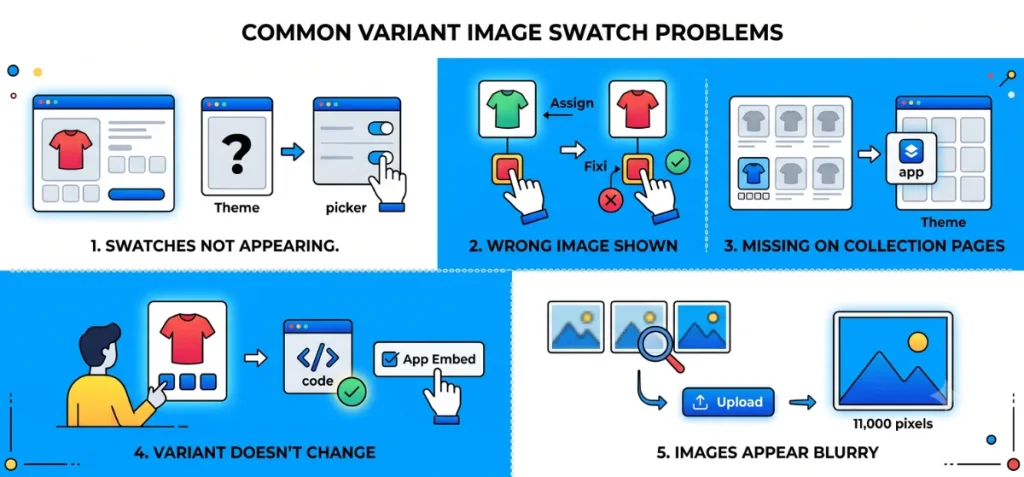
Here are some common problems Shopify store owners face while adding variant image swatches.
| Problem | Possible Cause | Solution |
| Swatches not appearing | Theme doesn’t support image swatches | Enable supported picker or use an app |
| Wrong image shown | Variant image assignment is incorrect | Reassign the correct image |
| Swatches missing on collection pages | Theme limitation | Use an app or custom development |
| Variant doesn’t change | App embed disabled or theme conflict | Verify app setup and theme compatibility |
| Images appear blurry | Low-resolution source images | Upload higher-quality images |
Best Practices for Shopify Variant Image Swatches
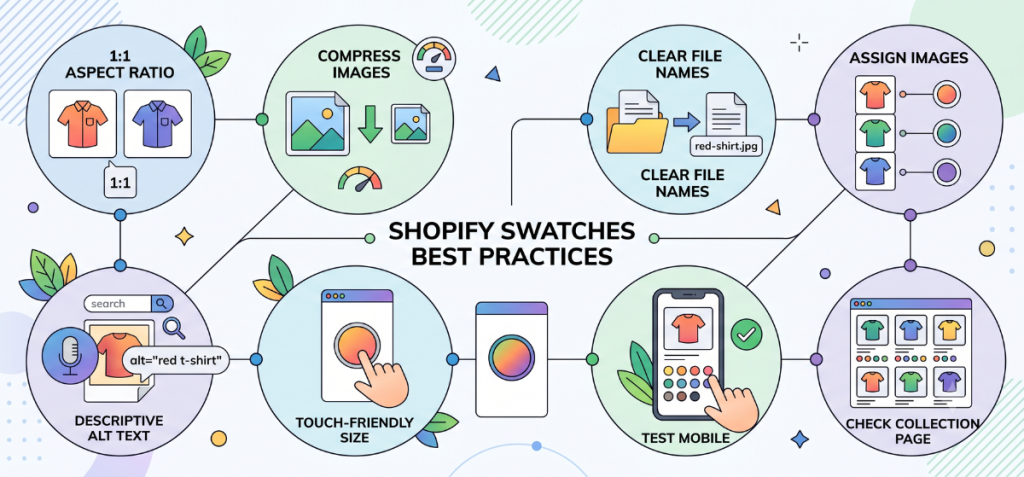
Follow these best practices for Shopify variant image swatches.
- Maintain Consistent Dimensions: Standardize product images to a 1:1 square aspect ratio (ideally 2048 x 2048 px) to prevent broken layouts or awkward cropping across swatch previews.
- Compress Image Files: Run uploaded media through compression tools to maintain fast page load times and preserve site performance on mobile devices.
- Use Clear, Descriptive File Names: Name your original image files logically with color names and product titles before uploading to keep your media library organized.
- Assign Images to Every Single Variant: Ensure every option value has a dedicated visual attached so shoppers do not encounter default placeholder graphics.
- Optimize Alt Text for SEO and Accessibility: Write concise, descriptive alt text under 125 characters for every product variant photo.
- Set Touch-Friendly Swatch Sizes: Keep swatch targets large enough for easy tapping on smaller touchscreens.
- Test Swatch Display Across Mobile Devices: Always test how your Shopify color swatches on product page layouts render across smaller mobile displays to prevent unexpected layout shifts.
- Check Collection Page Displays Separately: Verify that your swatches render properly on collection grids and search result cards, not just product detail pages.
Wrapping Up
Okay, you can now add swatches based upon the variant image automatically in Shopify to save hours of tedious store management.
Always test your new image swatches across mobile screens before running active ad campaigns. Proper setup keeps your product pages fast, mobile-friendly, and ready to convert visitors.
That’s all with this article, and I’ll catch you up with another helpful guide. Until then, keep reading my other content.
FAQs
Does Shopify Automatically Create Image Swatches from Variant Images?
No. Shopify native settings only switch dropdown UI styles. You can’t automatically extract or create image swatches directly from variant gallery photos without using a third-party app.
Can I Display Variant Image Swatches Without Coding?
Yes. You can easily display variant image swatches without writing code by installing a third-party app like Echo Swatch or selecting a modern Shopify theme that offers built-in swatch options.
Why Aren’t My Shopify Variant Image Swatches Showing?
Variant image swatches fail to appear when images are not linked to individual variants, app embeds are disabled, or the theme lacks built-in swatch support.
Which Shopify Themes Support Image Swatches?
Modern Shopify themes like Horizon, Pitch, Prestige, and Impact natively display variant images as clickable swatches without extra apps or code changes.