

How to Add Different Color Options on Shopify

Go to your Shopify Admin and click Products. Select your item, scroll to Variants, and click “+ Add options like size or color.” Type “Color” as the option name. Enter your color values like Black, Blue, or Red. Click Save. Assign unique prices, inventory, and images to each color.
Many shoppers leave a Shopify store when they can’t find the shade they want. You lose sales if you show only one generic photo of a product that comes in five shades. Customers get confused, hesitate, and abandon their carts.
You do not need complex code to fix this issue. You can learn how to add different color options on Shopify in minutes using default store settings.
This simple guide walks you through every step. You’ll learn how to create color choices, link unique photos to each shade, and turn plain text into visual swatches.
How to Add Different Color Options to a Shopify Product
Shopify lets you set up variant options directly inside your product catalog. Follow these five simple steps to build your color list.
1. Open Your Product in Shopify
Log in to your Shopify Admin. Click ‘Products’ on the left menu. Select the exact product item you want to edit from your list.
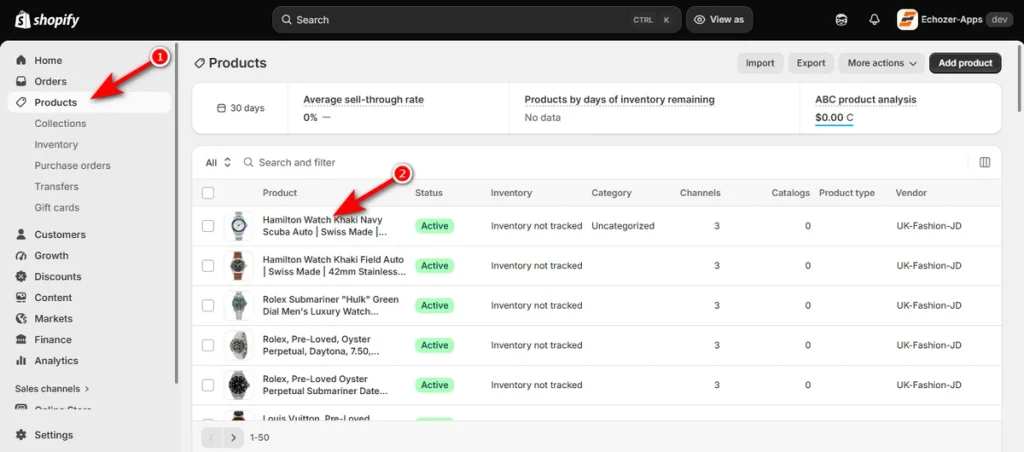
2. Add Color as a Product Option
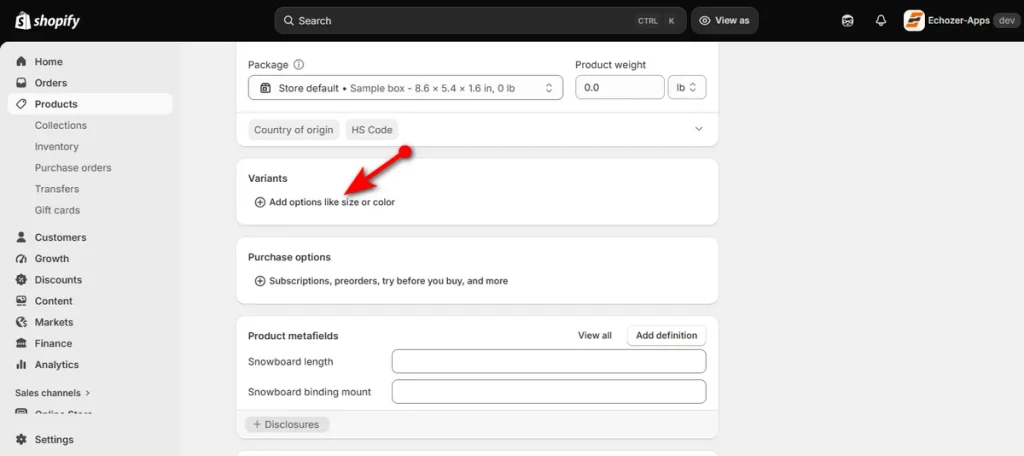
Scroll down the page to the ‘Variants’ section. Click “+ Add options like size or color.”
Choose “Create custom option” from the dropdown menu.
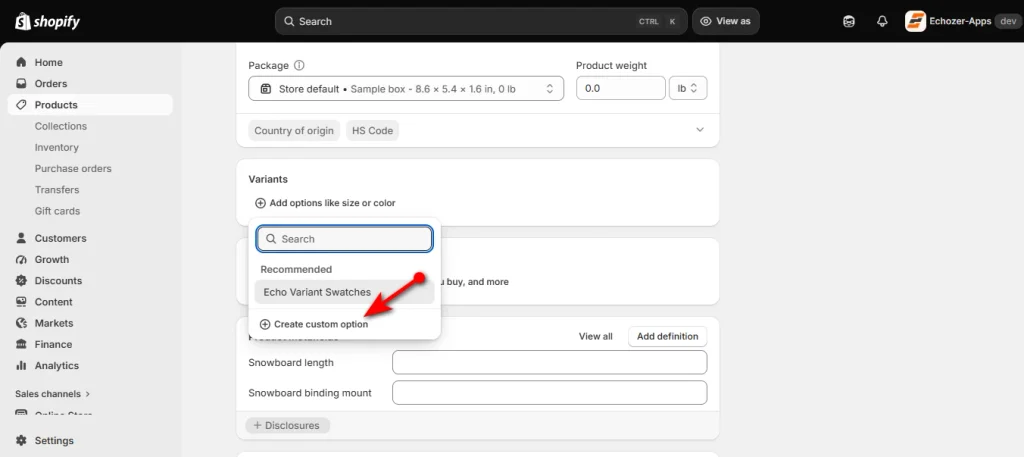
3. Add Your Color Values
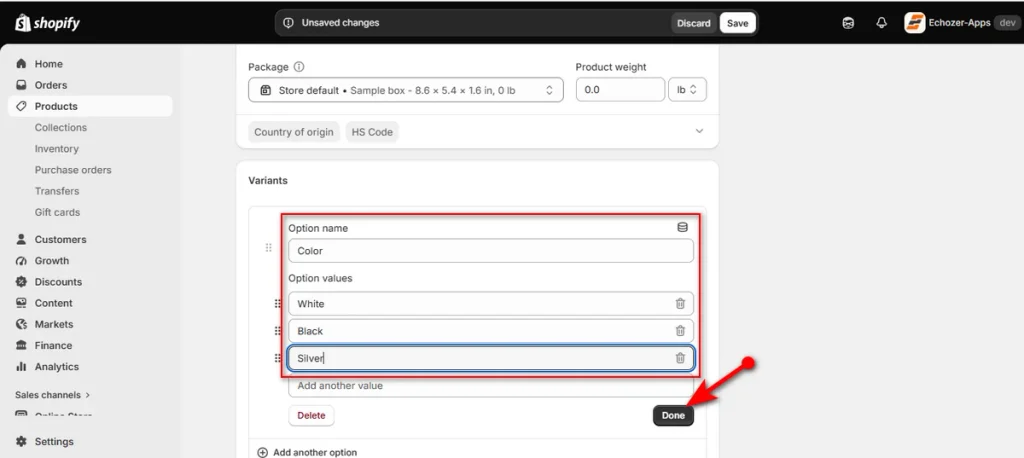
Type ‘Color’ into the “Option name” box. Enter your specific shades into the “Option values” rows below it.
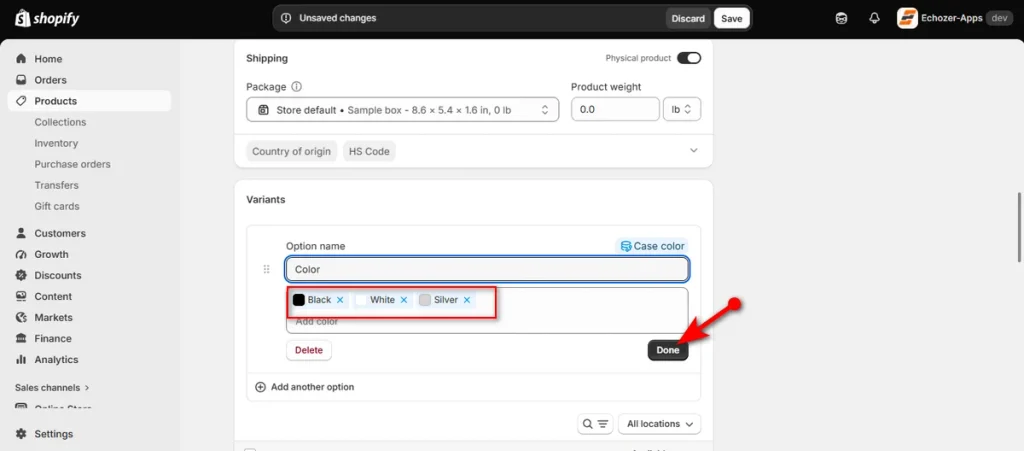
Add shades like White, Black, or Silver one by one, then click ‘Done.’
You can also expand your catalog later with other Shopify variant options.
4. Edit Each Color Variant
Select individual variants to fine-tune specific details.
You can upload a variant image so the product picture matches the chosen color. You can also assign unique prices, inventory levels, SKUs, and barcodes for each shade.
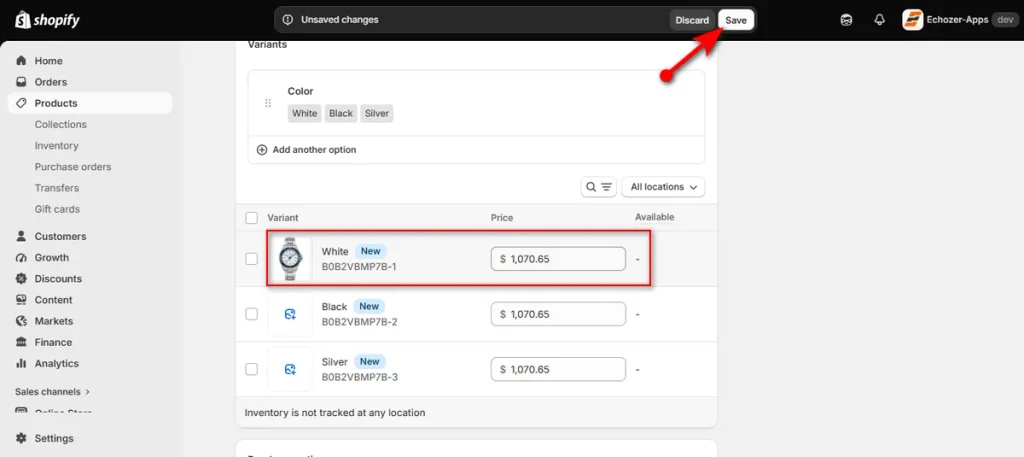
Finally, click the ‘Save’ button at the top right corner to store these changes.
How to Add Shopify Color Swatches Instead of Text Options
Text buttons only show names. Visual swatches show real colors. You create choices with color variants. Swatches change how your buyers see and tap those choices.
Use Shopify’s Native Category Metafields
You can turn plain text buttons into visual swatches without custom code:
- Pick a product category: Open your product page. Pick the right item type under the ‘Category’ box to unlock default color fields.
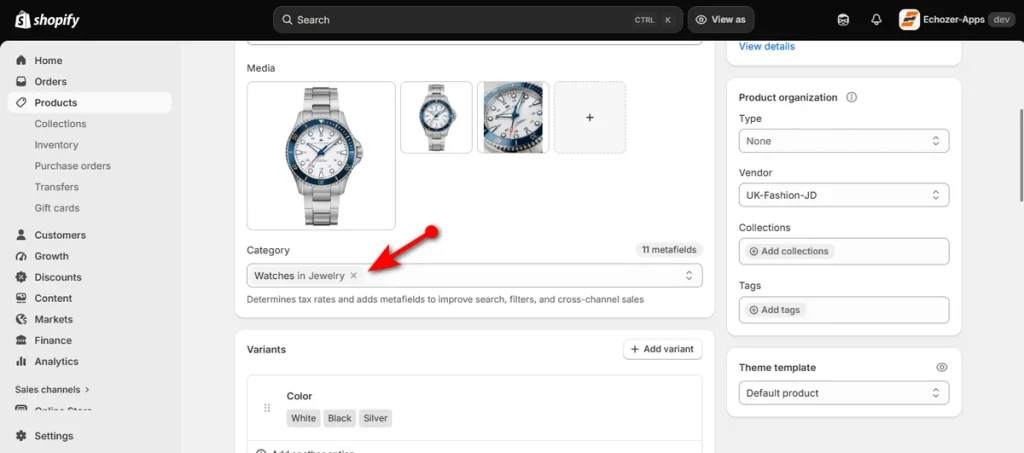
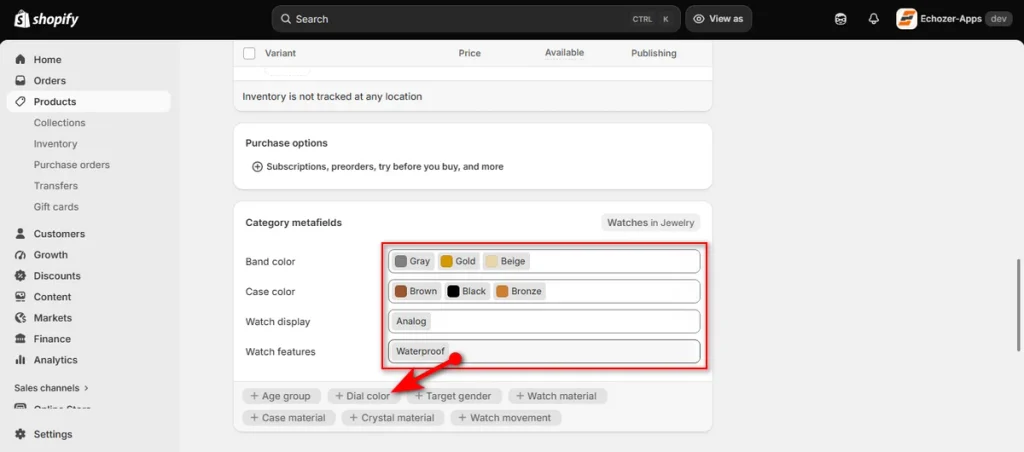
- Set your category values: Scroll down to the “Category metafields” area. Pick your colors for options like “Band color” or “Case color.”
- Open the variant section: Scroll down to ‘Variants’ and click on your ‘Color’ option.
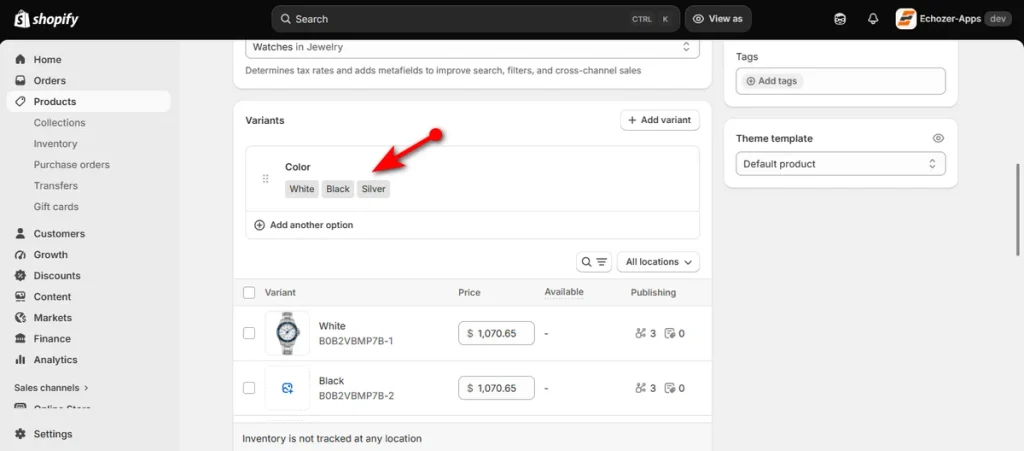
- Link the color metafield: Click the small database icon next to “Option name.” Pick the matching category metafield from the list.
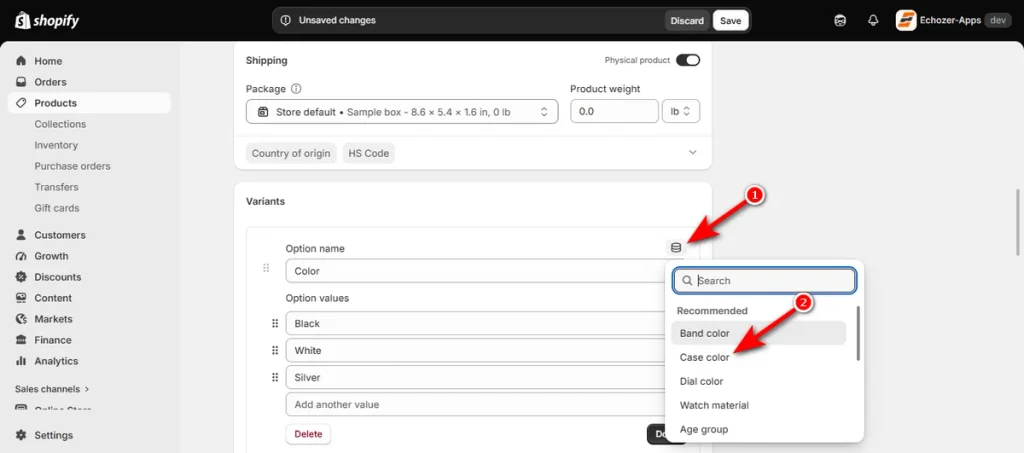
- Confirm your color values: Make sure small color dots appear next to each shade, then click ‘Done.’
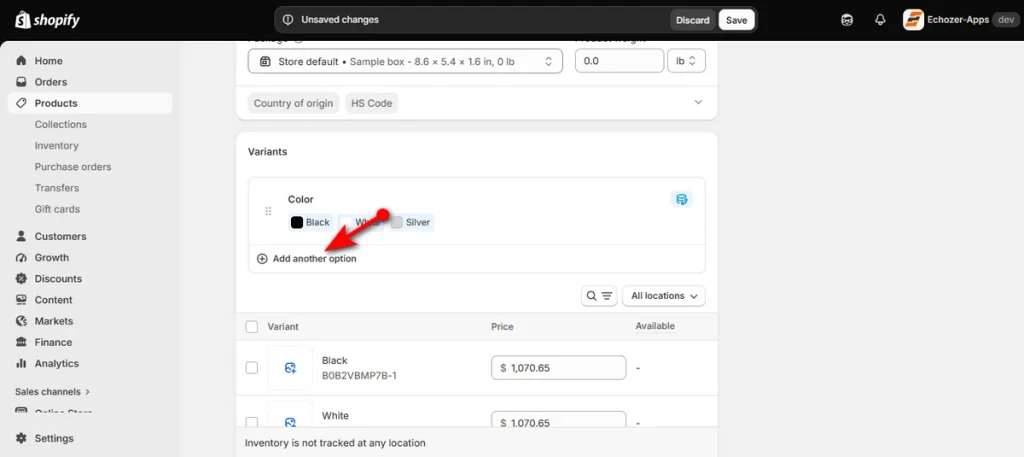
- Add an extra option: Click “+ Add another option” if your product has a second color choice.
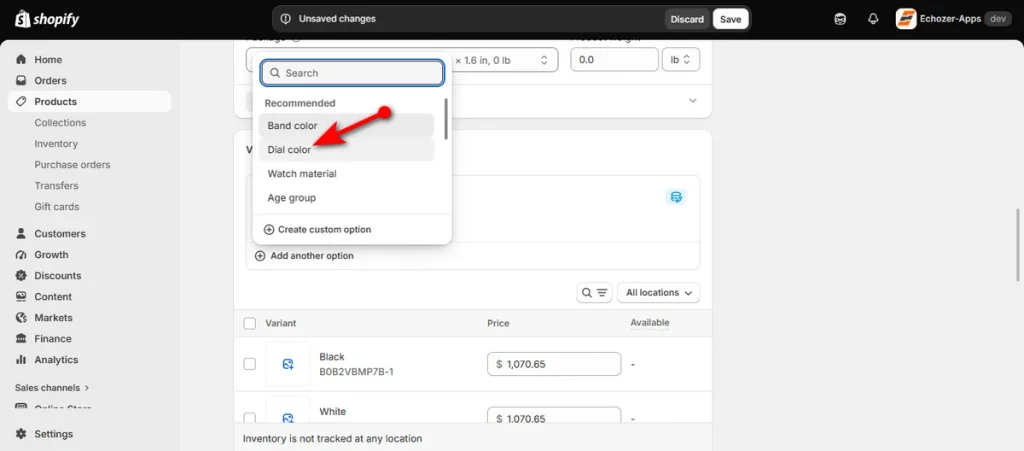
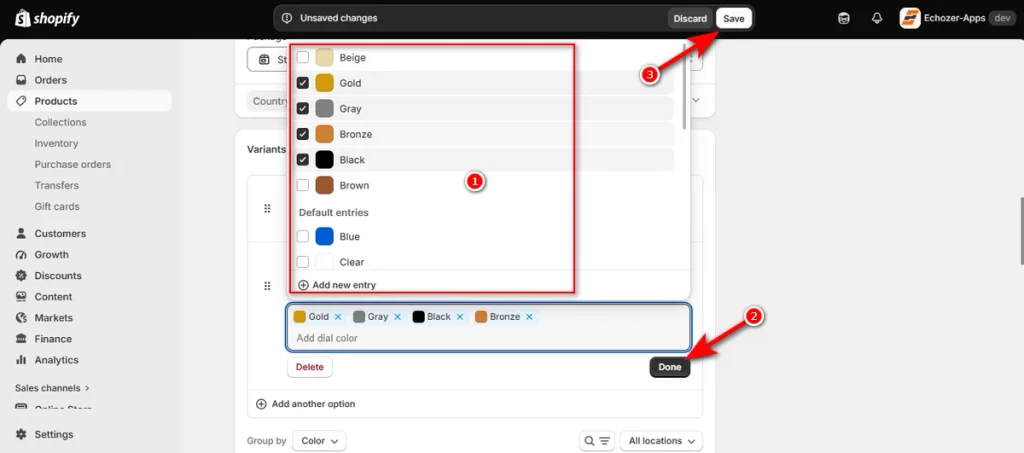
- Pick the next color type: Select another shade type like “Dial color” from the list.
- Save your new entries: Check the boxes for your colors, click ‘Done,’ and hit the top ‘Save’ button.
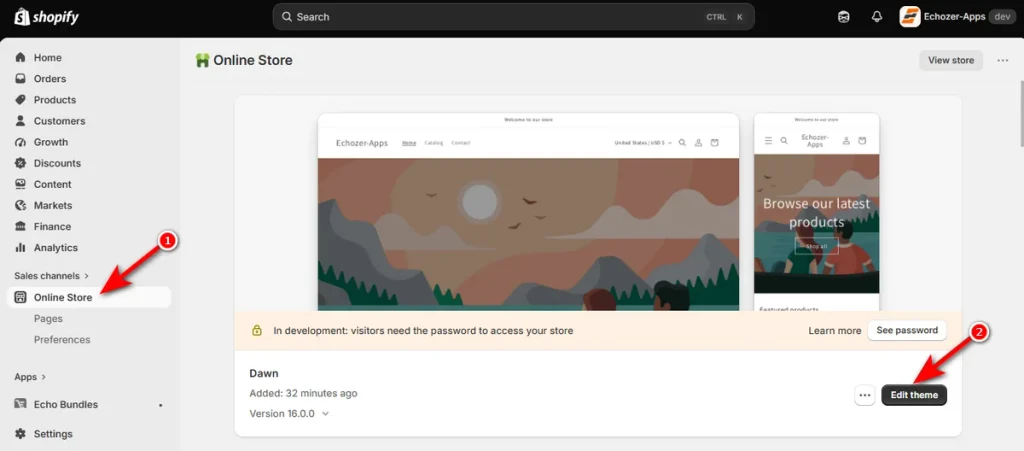
- Open the theme builder: Go to Online Store > Themes in your left menu and click “Edit theme.”
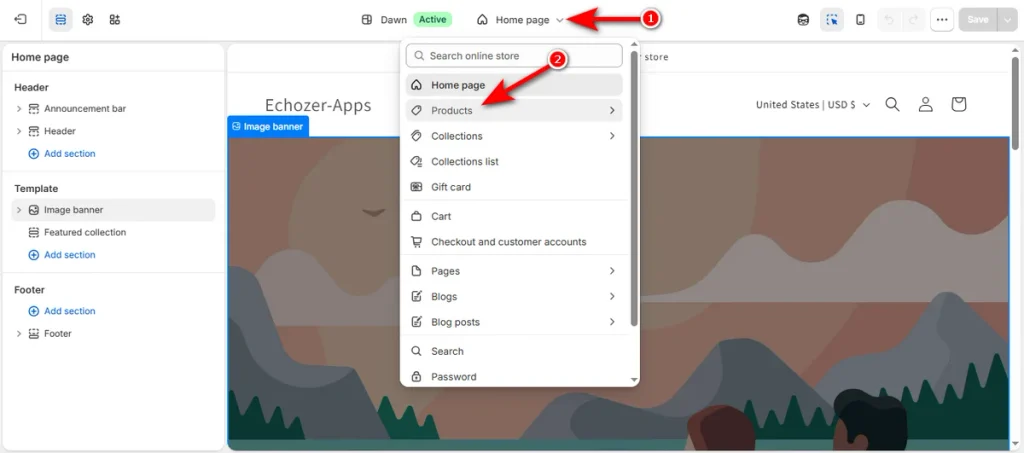
- Find product templates: Click the top dropdown menu and select ‘Products.’
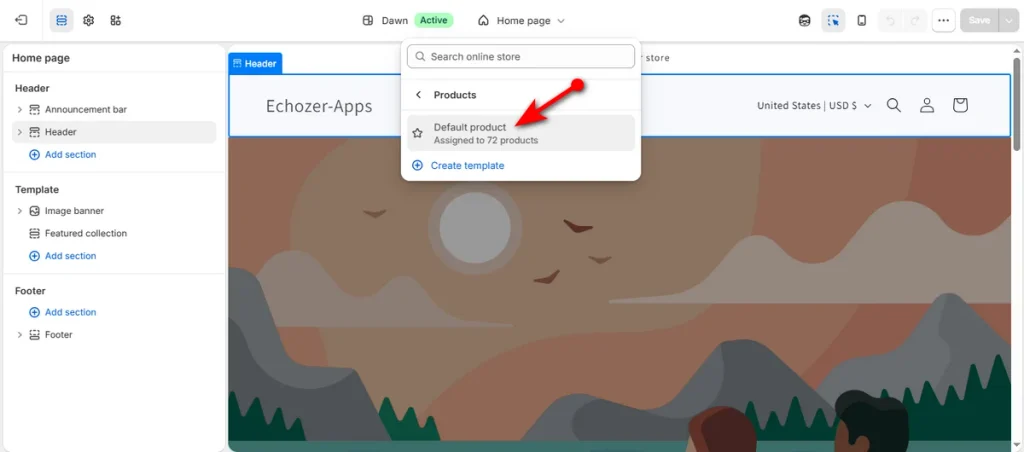
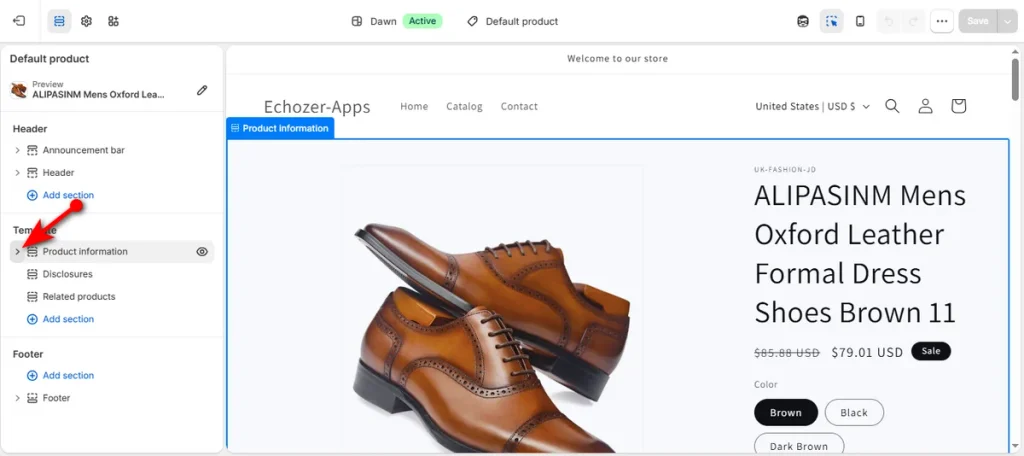
- Select default product: Click “Default product” to see your store page layout.
- Expand product info: Click the small arrow beside “Product information” in the sidebar.
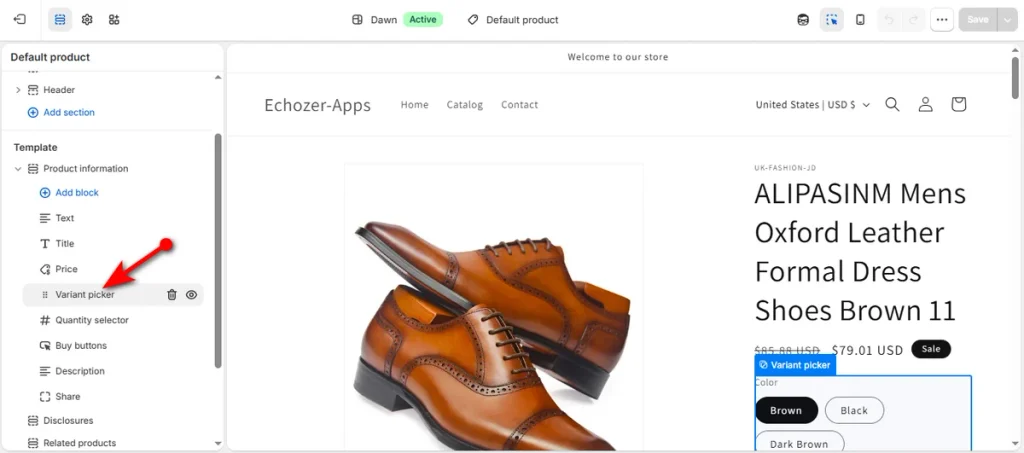
- Select variant picker: Click the “Variant picker” block in the left panel.
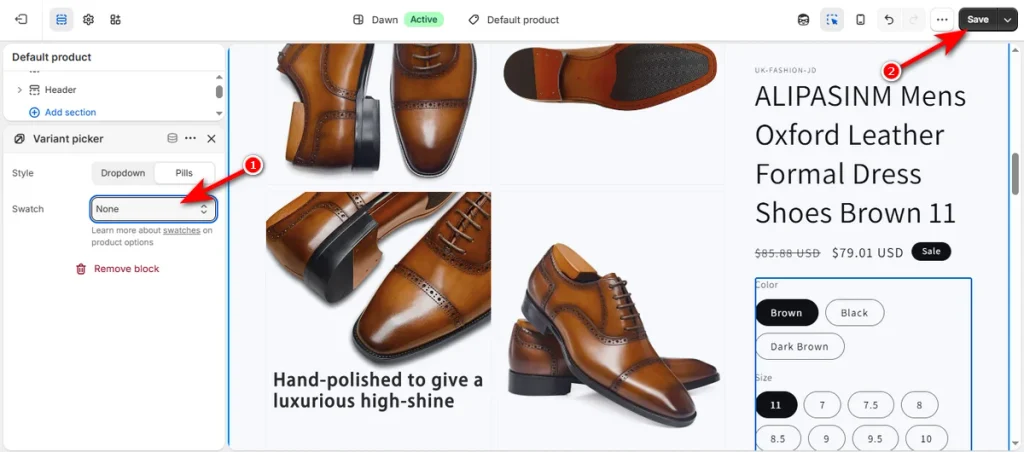
- Turn on color swatches: Click the ‘Swatch’ dropdown, pick your display style, and hit ‘Save.’
When Shopify’s Native Color Options Are Enough
Shopify handles basic setups straight. You don’t need extra tools if your catalog uses simple options and clean themes.
| Need | Native Shopify |
| Add basic colors | Yes |
| Different price per color | Yes |
| Different inventory per color | Yes |
| Variant-specific images | Yes |
| Category-linked color values | Yes |
| Native color swatches | Theme and category-metafield dependent |
| Complex custom selectors | Usually needs an app |
| More than 3 option categories | App or customization |
| Automated image-to-variant mapping | App is useful |
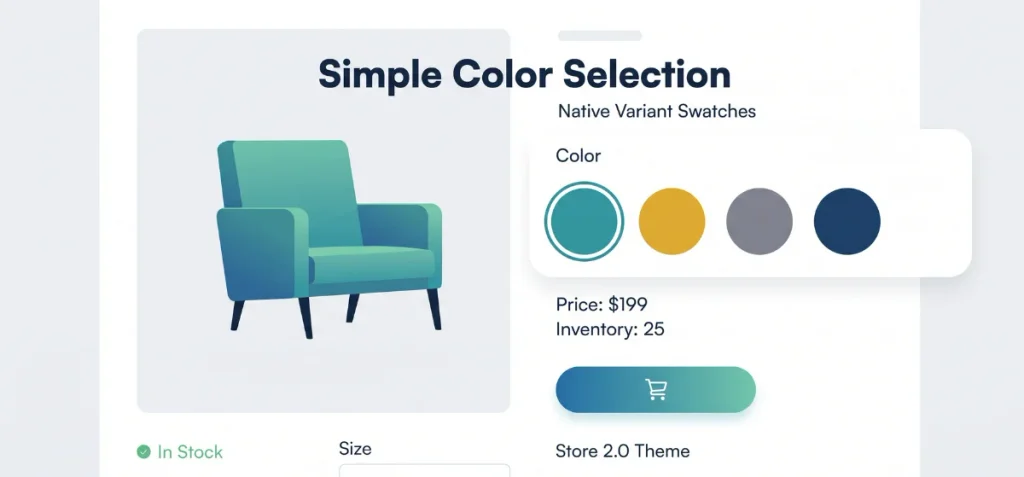
Modern Online Store 2.0 themes turn standard words like “Red” or “Black” into round color pills automatically.
Shopify’s official variant tools let you attach a unique price, inventory count, and main photo to each shade without monthly app fees.
You’ll need a dedicated app once your catalog grows. Custom fabric prints, dual-tone shades, and clean gallery filters require third-party tools.
When You Need a Shopify Color Swatch or Variant Image App
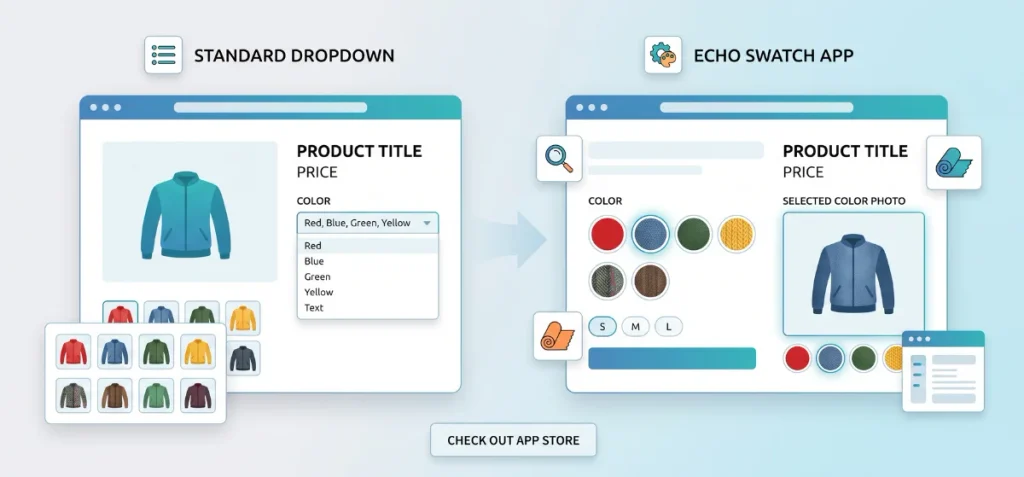
Native Shopify handles raw product data well. Trouble starts when you carry hundreds of items, dozens of shades, and multiple photos per shade.
Standard dropdown menus hide fabric textures, patterns, and style choices behind boring text lists. Default galleries also clutter your page by showing every photo at once.
You need a dedicated tool to regain visual control. Echo Swatch fixes these issues instantly. It adds clean color swatches, actual fabric image buttons, and size pills to your store.
The app maps photos to shades automatically and hides unrelated pictures when a buyer clicks a new color. It runs smoothly on Online Store 2.0 themes and works with page builders like PageFly, GemPages, and EComposer.
Check out Echo Swatch on the Shopify App Store to review live features, merchant ratings, and plans.
How to Choose the Right Color Setup for Your Shopify Store
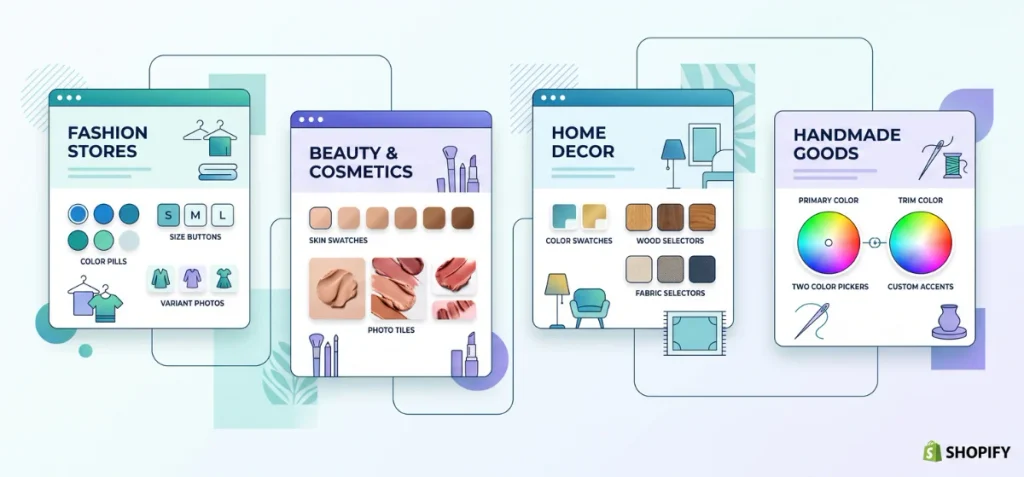
Every product category demands a unique variant layout. Match your selector style to your store type:
- Fashion Stores: Pair color pills with size buttons and variant photos. Merchants often browse Shopify apps for clothing stores to handle large style catalogs.
You can also pick top options from best variant size Shopify apps for clean size grids. - Beauty and Cosmetics: Use actual skin shade swatches and photo tiles instead of text names.
- Home Decor: Combine color swatches with wood or fabric material selectors.
- Handmade or Custom Goods: Set up two color pickers so shoppers can customize primary and trim accents.
- Dropshipping: Pair color and size with auto-mapping tools. Check out dedicated Shopify apps for dropshipping to import supplier variant photos fast.
Common Shopify Color Variant Problems and Fixes
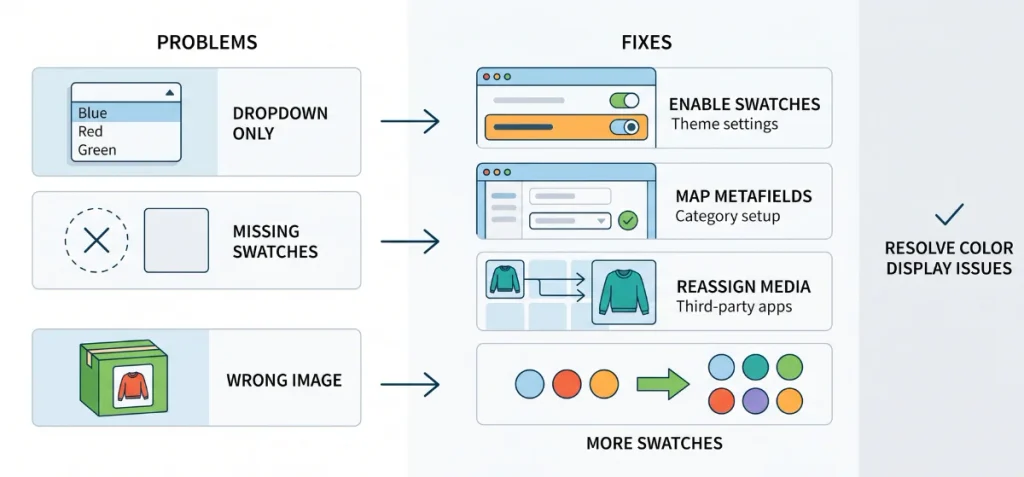
Variant setups don’t always display correctly on the front store. Shopify notes that swatches demand theme support and proper Variant picker settings. Use this quick guide to solve common display bugs:
| Problem | Likely Reason | Fix |
| Colors appear as a dropdown | Theme display settings | Check Variant picker settings |
| Swatches do not appear | Unsupported setup or theme | Verify category metafield and theme support |
| Wrong image appears | Incorrect variant media assignment | Reassign variant media files |
| Too many variants | Too many option combinations | Reduce choices or use a third-party app |
| Need two separate color selectors | Complex product setup | Create separate custom product options |
| Product gallery shows unrelated colors | Media files lack grouping | Filter product media to show only the selected variant images |
You can also read our simple guide on how to change swatch size if buttons look too small. Store owners who want hands-free setups can create image-based swatches automatically without manual uploads.
My Concluding Thoughts
You now know how to add different color options on Shopify without any headache.
Clear shades and visual buttons help buyers find what they want fast. Shoppers buy with confidence when the product picture matches the chosen color.
Start with native settings for basic items. Switch to a dedicated app as your catalog grows. Your sales will thank you.
FAQs
Can I Add More Than 3 Variants on Shopify?
Shopify limits native products to three option types. Install Echo Swatch to unlock unlimited custom options, visual selectors, and extra product choices beyond default platform limits.
How to Add Custom Color Swatches in Shopify?
Set a product category to unlock color metafields, link them to your variants, and select swatches inside your theme editor’s variant picker block. Save your changes.
What Are Some Good Color Combinations for a Shopify Store?
Use three to five core colors with strong contrast. Follow the 60-30-10 rule: 60% dominant background, 30% secondary structure, and 10% bold accent for buttons.